
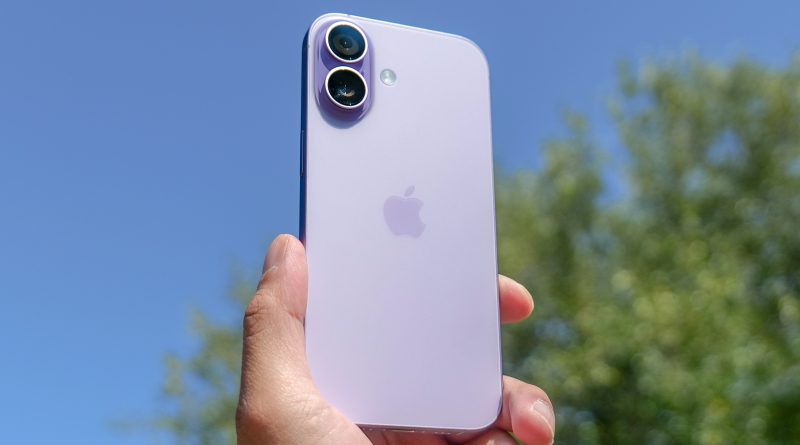
Best Ways to Organize Your iPhone Like a Pro
Organizing your iPhone effectively can significantly enhance productivity and streamline the user experience. With a plethora of apps, photos, and files accumulating over time, maintaining a well-organized device is essential. Here are some expert strategies to help you organize your iPhone like a pro.
Begin with decluttering your home screen by removing unnecessary apps. Identify applications that you rarely use and delete them to free up space and reduce visual clutter. For those indispensable yet infrequently used apps, consider offloading them via Settings > General > iPhone Storage. This feature retains app data while freeing storage space.
Next, categorize your remaining apps into folders based on their functionality or frequency of use. To create a folder, simply drag one app onto another; this will automatically generate a new folder which you can rename appropriately. Popular categories include Productivity, Social Media, Entertainment, Utilities, and Finance. Organize these folders across multiple screens if necessary but aim for minimalism on the first screen for quick access to essentials.
Utilize Apple’s App Library feature introduced in iOS 14 to further streamline app organization. Accessible by swiping left past your last home screen page, the App Library automatically categorizes all installed applications into pre-defined groups such as Suggestions and cool training Recently Added based on usage patterns.
For enhanced accessibility, customize the Control Center by navigating to Settings > Control Center > Customize Controls. Add shortcuts for frequently used features like Notes or Voice Memos so they’re always just a swipe away from any screen.
To maintain an organized photo library, regularly review and delete duplicate or poor-quality images using third-party apps designed to identify duplicates efficiently. Create albums within Photos for different events or themes like Travel or Family so finding specific pictures becomes easier over time.
Leverage cloud services such as iCloud Drive or Google Drive for document management instead of storing everything locally on your device; this not only saves space but also ensures important files are accessible across various devices seamlessly.
Consider setting up automation through Siri Shortcuts available under Settings > Siri & Search > All Shortcuts allowing repetitive tasks such as sending messages at specific times without manual intervention every single instance thus saving valuable time daily while ensuring consistency throughout routine activities performed via smartphone interactions regularly undertaken frequently often enough warranting automation implementation consideration seriously indeed!